7-Zip is a free and open-source file compression software that allows users to create and extract archive files in various formats. It supports popular archive types such as 7z, ZIP, TAR, and many other formats. It can create highly compressed archives, significantly reducing file sizes when the source files are suitable for compression.
This makes 7-Zip an excellent tool for users who need to save storage space, share files over the internet, or store large amounts of data efficiently. In this guide, we will provide step-by-step instructions on how to achieve a high compression ratio using 7-Zip and explain which settings are useful for different types of files.
Important: There is no single 7-Zip setting that can compress every 1GB of data into 10MB. The final archive size depends mainly on the type and contents of the files. Text and other uncompressed data may shrink considerably, while MP3, MP4, JPEG, PNG, and many other already-compressed files usually show only a small reduction.

Why Use 7-Zip for File Compression?
A file archive manager like 7-Zip is useful for computer users, especially when dealing with large numbers of files or folders. The benefits of using 7-Zip for compression include:
- Reduced file size: Compress suitable files into smaller archives to save storage space.
- Easier file transfers: A compressed archive can make it easier to send or store a collection of files.
- Multi-format support: 7-Zip can create several archive formats and extract many more formats.
- Free and open-source: 7-Zip is free to use, including in commercial organizations.
- High compression ratio: The 7z format supports LZMA and LZMA2 compression methods.
- Encryption: 7z and ZIP archives can use AES-256 encryption.
- Windows integration: 7-Zip integrates with the Windows shell and provides a file manager and command-line version.
According to the official 7-Zip information, the program can create 7z, XZ, BZIP2, GZIP, TAR, ZIP, and WIM archives. It can also extract many additional formats, including RAR. RAR support is for unpacking rather than creating RAR archives.
Can 7-Zip Compress 1GB to 10MB?
Using some file compression tools, it may be possible to reduce certain 1GB collections of files to 10MB or less, but this is not something 7-Zip can guarantee. The result depends on how much repetitive or uncompressed information exists in the source files.
For example, a large collection of plain text files can sometimes achieve a very high compression ratio. On the other hand, a 1GB folder containing MP4 videos, MP3 music, JPEG photographs, or other compressed files may remain close to its original size after being placed in a 7z archive.
Please remember that this compression process does not apply to all types of files. Text files like .txt files, documents, spreadsheets, and some other data files are often highly compressible. But you cannot expect to compress some files such as MP3, MP4, video clips, and JPEG images by a large amount using 7-Zip or similar archive software.
7-Zip allows you to take several files and compress them into one archive, which can be smaller than the overall size of the original files. But keep in mind that you cannot compress videos, MP3s, and JPEGs hugely compared with their original size because these formats have already been compressed.
By changing the compression settings in 7-Zip, it is possible to improve the compression ratio for suitable files. However, higher compression does not always mean a dramatically smaller archive. It can also require more CPU time and memory.
Follow these steps to create a high-compression 7z archive.
Steps to Create a Highly Compressed Archive With 7-Zip
First of all, download the 7-Zip software from here. After the download is complete, find the 7-Zip setup file in the download folder, double-click the setup file, and then click on “Install” to set up 7-Zip on your computer. After a few moments, the installation will be completed. Once installed, you can launch the application.
Text and Graphics Tutorial
To create a compressed archive, put the files and folders that you want to compress in one place or folder. Now, drag and select all these files and folders.
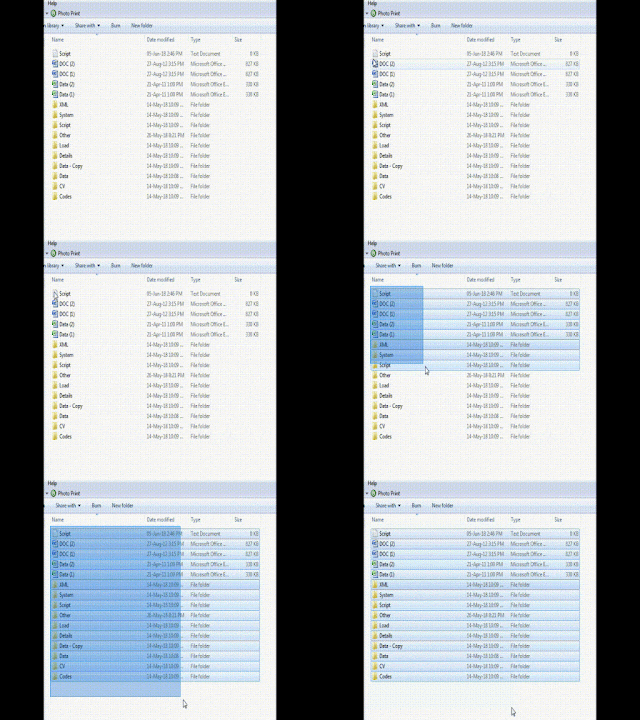
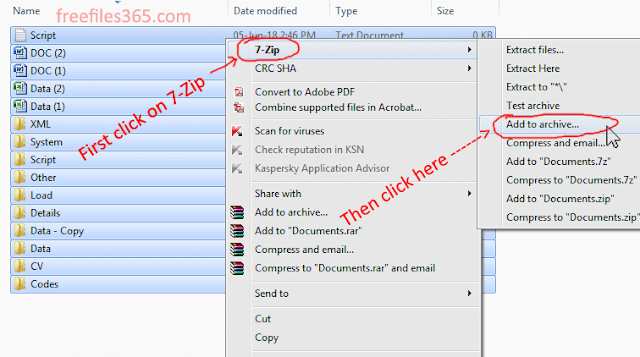
When you install 7-Zip, it adds 7-Zip options to the Windows context menu. After selecting the files, right-click on the selected files and select 7-Zip from the context menu and then click on the Add to archive… option, as shown in the image below.
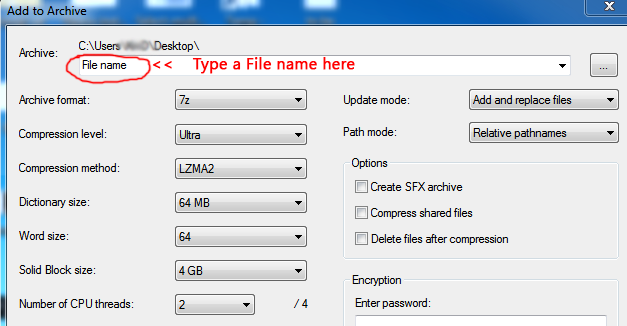
The 7-Zip compression window will open after selecting the Add to Archive… option. This is where you can choose the archive format and compression settings.
1. Select the 7z Archive Format
First, type the name of your archive and move to the Archive format option. Select 7z if it is not already selected.
The 7z format is normally the best choice when your main goal is maximum compression with 7-Zip. It supports LZMA and LZMA2 compression, solid compression, and AES-256 encryption.
2. Set the Compression Level to Ultra
Set the Compression level to Ultra when your priority is the smallest possible archive and you are willing to wait longer for compression.
The Ultra setting does not guarantee a particular reduction in file size. On some files, the difference between Normal and Ultra may be small, while on highly compressible data it can be more noticeable.
3. Choose LZMA2 as the Compression Method
For a 7z archive, select LZMA2 as the compression method when it is suitable for your files. LZMA2 is an improved version of LZMA and is designed for efficient compression while making better use of multiple CPU threads during compression.
LZMA and LZMA2 are lossless compression methods. This means that the original files can be recovered without losing information when the archive is extracted.
4. Choose an Appropriate Dictionary Size
Dictionary Size is an important setting because it affects compression ratio, compression speed, and memory usage.
A larger dictionary can improve compression for some types of data, but it also requires more memory. Therefore, simply choosing the largest available dictionary is not always the best choice for every computer.
The original version of this guide recommended a 64 MB dictionary. That can still be a reasonable setting for a general-purpose example, but it should not be treated as a universal “best” value. If you have plenty of RAM and are trying to achieve the smallest possible archive, you can test a larger dictionary and compare the result.
5. Word Size
The Word size setting can affect the compression ratio and speed. A larger value may improve compression for some data but can also increase processing requirements.
The original guide recommended a Word size of 64. You can keep this setting for the example shown here, but it is better to compare the resulting archive size with the default setting rather than assuming that 64 will always produce the smallest archive.
6. Solid Compression
Solid compression can be useful when you are compressing many similar files together. Instead of treating every file completely independently, 7-Zip can use information from nearby files to improve compression.
This can be particularly useful for folders containing many small text files or other similar data. However, solid archives have a practical disadvantage: extracting or updating individual files can be less convenient because the files are compressed together in solid blocks.
If you regularly need to extract or update individual files inside the archive, consider using a smaller solid block size or disabling solid compression.
7. CPU Threads
7-Zip can use multiple CPU threads for compression. Using more threads can make compression faster, but it can also increase CPU usage and make the computer less responsive while the process is running.
The old recommendation to always use fewer threads, such as two threads on a four-thread CPU, is not a requirement for getting better compression. It is mainly a way of leaving some CPU resources available for other tasks.
If you are not using the computer while compression is running, allowing 7-Zip to use more available CPU resources can reduce the time required. If you want to continue working while the archive is being created, use fewer threads.
8. Split the Archive Into Smaller Volumes
Another useful option in the 7-Zip window is Split to volumes, bytes. This option allows you to split a large archive into smaller pieces.
For example, if you need to transfer an archive in smaller parts, you can enter a suitable size such as 100M, 700M, or 4G. 7-Zip will create multiple archive parts instead of one large file.
Remember that splitting an archive does not provide additional compression. It only divides the resulting archive into smaller parts.
To extract a split archive, keep all the parts in the same folder and open the first part with 7-Zip. If any part is missing or damaged, extraction may fail.
Recommended 7-Zip Compression Settings
For users who simply want a practical starting point for maximum compression, the following settings are a good option for a 7z archive:
- Archive Format: 7z
- Compression Level: Ultra
- Compression Method: LZMA2
- Dictionary Size: 64 MB or a higher value if your system has enough RAM
- Word Size: 64 can be used for testing, although the default value may be better for some files
- Solid Block Size: Solid, or a suitable block size when individual file access is important
- CPU Threads: Use more threads for faster compression, or fewer threads if you want to keep the computer responsive
There is no single combination that produces the smallest archive for every type of data. If file size is extremely important, create a few test archives using different dictionary and solid-block settings and compare the results.
Best Settings for Different Types of Files
| File type | Expected compression | Recommended approach |
|---|---|---|
| TXT, CSV, XML, source code | Often high | 7z + LZMA2 + Ultra |
| Uncompressed documents/data | Often good | 7z + LZMA2 |
| DOCX, XLSX, PPTX | Usually limited to moderate | 7z + LZMA2; test before spending a long time compressing |
| Varies considerably | Depends on the content inside the PDF | |
| MP3, AAC and similar audio | Usually very small | Archive mainly for packaging rather than compression |
| MP4, MKV and other compressed video | Usually very small | Use a video encoder if the goal is to reduce video size |
| JPEG, WebP and PNG | Usually limited | Use an image optimization tool when further reduction is required |
| Existing ZIP/7z/RAR archives | Usually limited | Recompressing rarely produces a major reduction |
Video Tutorial
Here is a video tutorial on a YouTube Channel, namely Random Tech, on 7-Zip compression settings to create a highly compressed archive:
Limitations of 7-Zip Compression
While 7-Zip is highly efficient at compressing certain file types, some files do not compress well. These include:
- Multimedia files: MP3, MP4, AVI, JPEG, and many other formats are already compressed, so further reduction is usually limited.
- Encrypted files: Properly encrypted data generally does not contain the repeated patterns that compression programs need to achieve a high compression ratio.
- Existing archives: ZIP, RAR, 7z, and similar archives have normally already been compressed.
- Random or high-entropy data: Data that already looks random is difficult to compress further.
Can You Compress Video Files Using 7-Zip?
You can put video files into a 7z archive, but you usually cannot significantly reduce their size with 7-Zip. Most modern video formats, such as MP4 and MKV, already use compression techniques to reduce file size.
If you need to reduce the actual size of a video, use a dedicated video compression or encoding tool such as HandBrake or FFmpeg. These tools can re-encode the video using different codecs, resolutions, bitrates, and quality settings.
7-Zip Security and Encryption
7-Zip supports AES-256 encryption for 7z and ZIP archives. When creating a password-protected archive, you can enter a password in the encryption section of the Add to Archive window.
If the archive contains private or sensitive files, use a strong, unique password. Keep in mind that encryption protects the archive only when it is configured correctly and the password is kept secret.
7-Zip Supported Formats
7-Zip can create archives in several formats, including 7z, XZ, BZIP2, GZIP, TAR, ZIP, WIM.
It can also extract many additional archive and disk-image formats, including RAR, CAB, ISO, DMG, VHD, VHDX, VMDK, RPM, and others.
One important distinction is that 7-Zip does not create RAR archives. It can extract RAR files, but RAR creation requires software that supports the RAR format for creating archives.
Frequently Asked Questions
Can 7-Zip compress 1GB of files to 20MB?
It can happen with highly compressible data, but 7-Zip cannot guarantee that 1GB of data will become 20MB. The final size depends mainly on the type and contents of the files. Text and other uncompressed data may compress very well, while already-compressed files such as MP4, MP3, and JPEG usually do not.
What is the best compression method in 7-Zip?
For a 7z archive, LZMA2 with the Ultra compression level is a good starting point when the goal is a high compression ratio. The best result still depends on the type of data, dictionary size, solid settings, available memory, and other compression options.
Does 7-Zip compress MP4, MP3, and JPEG files?
7-Zip can place MP4, MP3, and JPEG files inside an archive, but these formats are already compressed, so the resulting archive is usually only slightly smaller than the original files. A dedicated video or image optimization tool is more suitable when the goal is to reduce the actual media file size.
Does 7-Zip support RAR files?
Yes. 7-Zip can extract RAR archives, but it does not create RAR archives. For creating RAR files, software that supports RAR creation is required.
Does 7-Zip support password protection?
Yes. 7-Zip supports AES-256 encryption for 7z and ZIP archives. When creating a password-protected archive, enter a strong password in the encryption section of the Add to Archive window.
What is the latest version of 7-Zip?
The latest stable version listed on the official 7-Zip website is 7-Zip 26.02, released on June 25, 2026. The official download page provides packages for Windows x64, x86, and ARM64, along with console versions for Linux and macOS.
Conclusion
Using the right 7-Zip compression settings can significantly reduce the size of suitable files, especially text-based and other data that has not already been compressed. The 7z format with LZMA2 and the Ultra compression level is a good starting point when maximum compression is the priority.
However, there is no guaranteed way to compress every 1GB of data to 10MB. The file type matters more than the compression software in many cases. Multimedia files, JPEG images, existing archives, and encrypted data usually cannot be reduced by a large amount with 7-Zip.
If you follow the steps outlined in this guide and test the settings with your own files, you can find a good balance between archive size, compression time, memory usage, and everyday usability with 7-Zip.







waw, its really working. thanks for the tips. I've compressed my 110 mb Excel files to just just 8.5 mb.